Box folder sync broken
Répondu
For some considerable time now, I have been trying and failing to to follow these instructions to set the Box Sync folder as the default Location for Documents in Windows:
https://support.box.com/hc/en-us/articles/360043694994-Setting-Box-Sync-as-a-Default-Save-Location-in-Windows
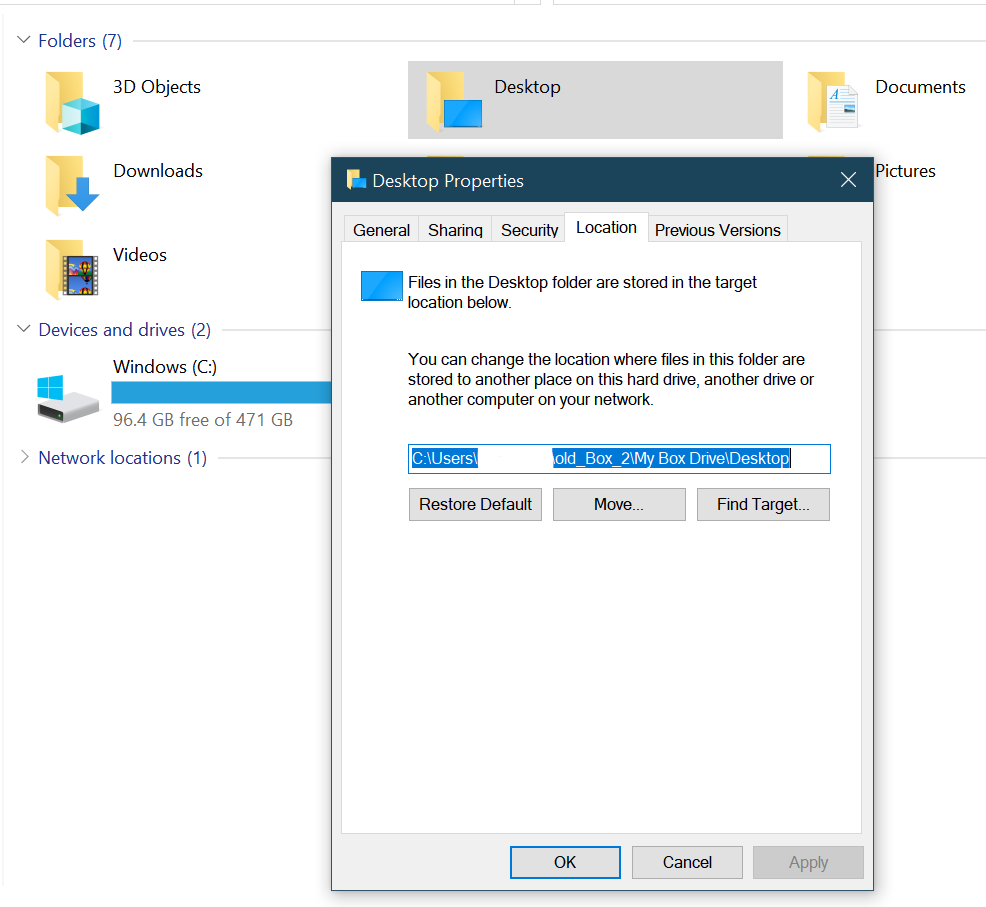
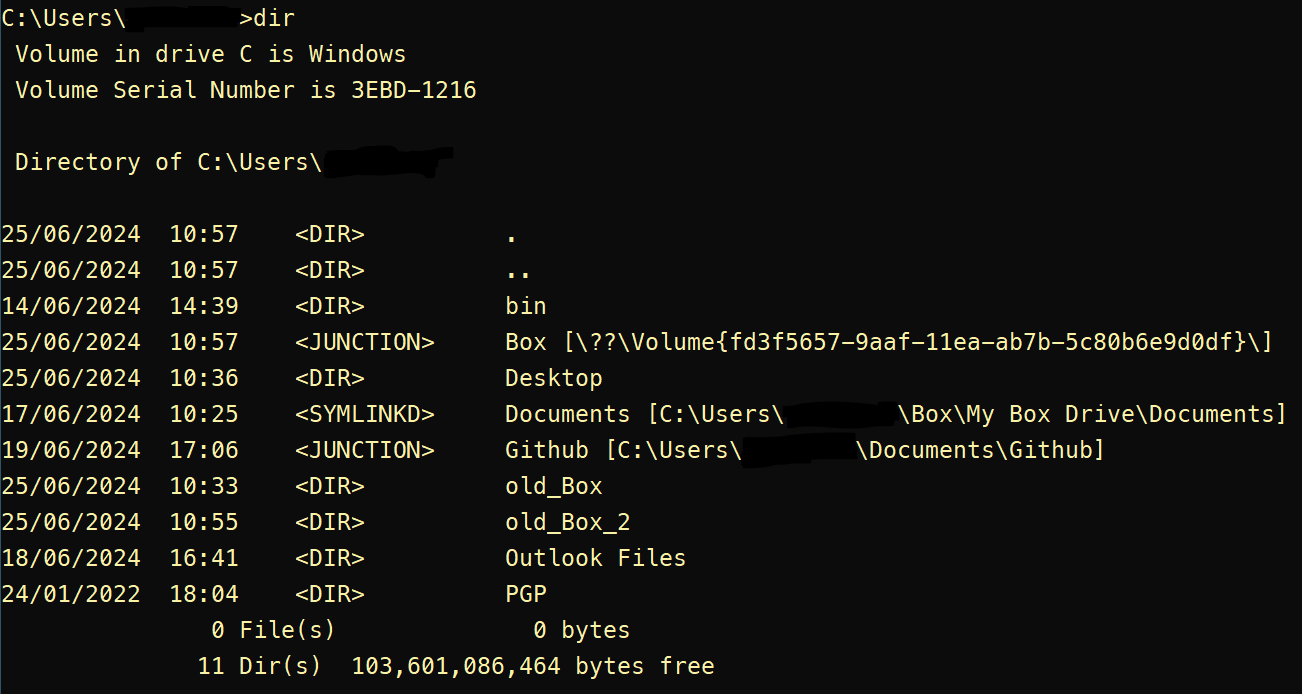
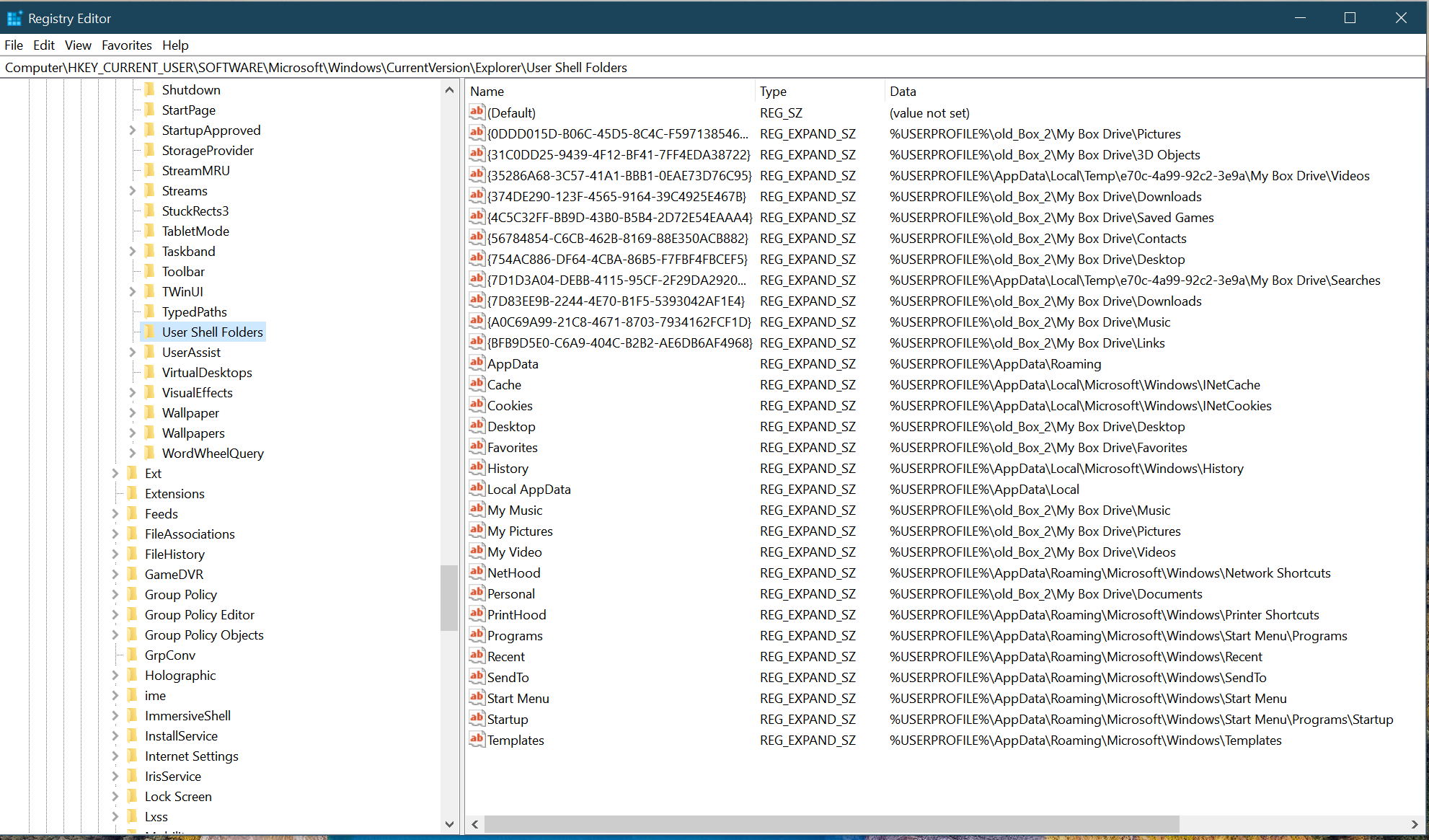
The problem is that whenever I reboot, the location is reset to an unsynced "old_Box" folder that I didn't create. This folder isn't even in the Box sync folder hierarchy. The same happens if I move any of the special user folders, such as Desktop, to a Box folder location too. It appears to work fine with OneDrive and Google Drive, but I'm not using those; so what is the problem with Box? Am I doing something wrong? The link above seems to imply that this is possible. I even tried running a script to reset the locations of these folders in the registry, but it doesn't seem to make any difference following a reboot. I also made sure the sync folder was marked for offline use as well.
If I just have a sync folder that doesn't involve any of these special folders in the hierarchy then everything is fine, but this isn't very useful. I have included some screenshots to illustrate the issues. Please can someone advise? Thanks.
-

Hi Paul,
Welcome to Box Community and happy to assist!
As much as we wanted to address this issue with you. Your Enterprise account has a designated team that works closely with Box Premier Services.
At this rate, please get in touch with your internal helpdesk team for immediate assistance.
Thanks for posting!
-

Hello Paul Wood - stumbled upon your post while searching online. Exact same problem here (including attempted remedies).
Did you end up finding a solution?
-
Hi Ross (sorry I don't now if the @ thing works here). I unfortunately never reached the resolution I was looking for. Even the symlink/junction solution wasn't ideal (mostly because the syncing would slow down any development work with the github folder trying to keep up-to-date every time I ran a build). In the end I would either manually switch to the Box folder if needed for editing shared files, or set-up a Windows Task Scheduler job to sync any local folders to the Box folder, purely as a simple backup for the more local files, e.g. using a batch file:
@echo off
set source="C:\Users\xxx\Documents"
set dest="C:\Users\xxx\Box\My Box Drive\Documents"
robocopy /mir %source% %dest% /s /e /zI don't think many folks are trying to do what we were trying here, otherwise there would be more noise about it. I don't understand why, because many other sync services do exactly this without any problems it seems.
Good luck though - I hope a solution comes along, because I only found out a couple of months ago after my computer died that the backup was actually working! :)
Cheers, Paul
-
Thanks for your reply, Paul Wood! Shame there's no "fix" per say; only workarounds, it seems. Either way - appreciated. Some other people may find the sync workaround useful, too.
In my case, no performance issues, just bizarreness of library paths being overwritten (as in your original post). I ended up using a PowerShell script to correct my access each time I log on via Task Scheduler.
Will leave this example code here in case someone else also stumbles upon this thread, needs this workaround, and finds it useful.
Cheers,
Ross
# PowerShell script to set custom folder locations and delete old_Box folders

# Define the custom folder locations using full paths
# !! Make sure to update these file locations with your real location !!
# !! For application compatibility reasons, better not to use environment variables here !!
$folders = @{
    "Personal"    = "C:\Users\username\Box\Documents"
    "Downloads"   = "C:\Users\username\Box\Downloads"
    "My Pictures" = "C:\Users\username\Box\Pictures"
    "My Video"    = "C:\Users\username\Box\Videos"
    "My Music"    = "C:\Users\username\Box\Music"
}

# Log file path (feel free to update this to something else)
$logFile = "C:\Scripts\SetCustomFoldersAndCleanOldBox.log"

# Function to log messages
function Log-Message {
    param (
        [string]$message
    )
    $timestamp = Get-Date -Format "yyyy-MM-dd HH:mm:ss"
    Add-Content -Path $logFile -Value "$timestamp - $message"
}

# Start logging
Log-Message "Script started."

# Set the custom folder locations in User Shell Folders
foreach ($folder in $folders.GetEnumerator()) {
    try {
        $keyPath = "HKCU:\Software\Microsoft\Windows\CurrentVersion\Explorer\User Shell Folders"
        Set-ItemProperty -Path $keyPath -Name $folder.Key -Value $folder.Value
        Log-Message "Set $($folder.Key) to $($folder.Value) in User Shell Folders."
    } catch {
        Log-Message "Error setting $($folder.Key) in User Shell Folders: $_"
    }
}

# Set the custom folder locations in Shell Folders
foreach ($folder in $folders.GetEnumerator()) {
    try {
        $keyPath = "HKCU:\Software\Microsoft\Windows\CurrentVersion\Explorer\Shell Folders"
        Set-ItemProperty -Path $keyPath -Name $folder.Key -Value $folder.Value
        Log-Message "Set $($folder.Key) to $($folder.Value) in Shell Folders."
    } catch {
        Log-Message "Error setting $($folder.Key) in Shell Folders: $_"
    }
}

# Update GUID keys for special folders
# !! Make sure to update these file locations with your real location !!
# !! For application compatibility reasons, please DO use environment variables here, not full path !!
$guidFolders = @{
    "{F42EE2D3-909F-4907-8871-4C22FC0BF756}" = "%USERPROFILE%\CustomDocuments"  # Documents
    "{374DE290-123F-4565-9164-39C4925E467B}" = "%USERPROFILE%\CustomDownloads"  # Downloads (legacy)
    "{7D83EE9B-2244-4E70-B1F5-5393042AF1E4}" = "%USERPROFILE%\CustomDownloads"  # Downloads (modern)
    "{0DDD015D-B06C-45D5-8C4C-F59713854639}" = "%USERPROFILE%\CustomPictures"   # Pictures
    "{A0C69A99-21C8-4671-8703-7934162FCF1D}" = "%USERPROFILE%\CustomMusic"      # Music
    "{18989B1D-99B5-455B-841C-AB7C74E4DDFC}" = "%USERPROFILE%\CustomVideos"     # Videos (common)
    "{35286A68-3C57-41A1-BBB1-0EAE73D76C95}" = "%USERPROFILE%\CustomVideos"     # Videos (additional)
}

foreach ($guidFolder in $guidFolders.GetEnumerator()) {
    try {
        $keyPath = "HKCU:\Software\Microsoft\Windows\CurrentVersion\Explorer\User Shell Folders"
        Set-ItemProperty -Path $keyPath -Name $guidFolder.Key -Value $guidFolder.Value
        Log-Message "Set $($guidFolder.Key) to $($guidFolder.Value) in User Shell Folders."
    } catch {
        Log-Message "Error setting $($guidFolder.Key) in User Shell Folders: $_"
    }
}

# Define the base directory where old_Box folders might be created
$baseDirectory = "$env:USERPROFILE"

# Delete any folders starting with "old_Box" in the base directory
try {
    Get-ChildItem -Path $baseDirectory -Directory -Filter "old_Box*" | ForEach-Object {
        Remove-Item -Path $_.FullName -Recurse -Force
        Log-Message "Deleted folder: $($_.FullName)."
    }
} catch {
    Log-Message "Error deleting old_Box folders: $_"
}

# Refresh the environment to apply changes
try {
    # Use a more graceful method to refresh Explorer
    $shell = New-Object -ComObject Shell.Application
    $shell.Namespace(0).Self.InvokeVerb("Refresh")
    Log-Message "Refreshed Explorer."
} catch {
    Log-Message "Error refreshing Explorer: $_"
}

# End logging
Log-Message "Script completed."
Vous devez vous connecter pour laisser un commentaire.
Commentaires
5 commentaires