What is Box Relay?
Box Relay is a no-code workflow automation tool built into Box. It helps you automate repeatable, content-based processes—like reviews, approvals, and routing documents—without writing any code.
You can use Box Relay to:
- Automatically assign tasks when files are uploaded
- Route documents through review and approval steps
- Move, rename, or organize content based on rules
- Collect files or information and trigger follow-up actions
Box Relay works best for processes that:
- Involve files or folders stored in Box
- Require multiple people or steps
- Follow the same pattern each time
Common examples include contract approvals, creative reviews, employee onboarding, and invoice processing.
Table of Contents
- What is Box Relay?
- How does Box Relay work?
- Building your first Box Relay workflow
- Best Practices for Box Relay Beginners
- Level Up your Workflows
- Monitor and Maintain Your Workflows
How does Box Relay work?
Before building a workflow, it helps to understand three core concepts: Triggers, Outcomes, and the permissions needed to run Box Relay workflows.
Triggers: What Starts a Workflow
A trigger is the event that starts a workflow. Each workflow has one trigger.
Common triggers include:
- A file is uploaded to a folder
- A Box Form is submitted
- A workflow is started manually by a user
- A scheduled date or time is reached
- A File Request receives uploads
Outcomes: What the Workflow Does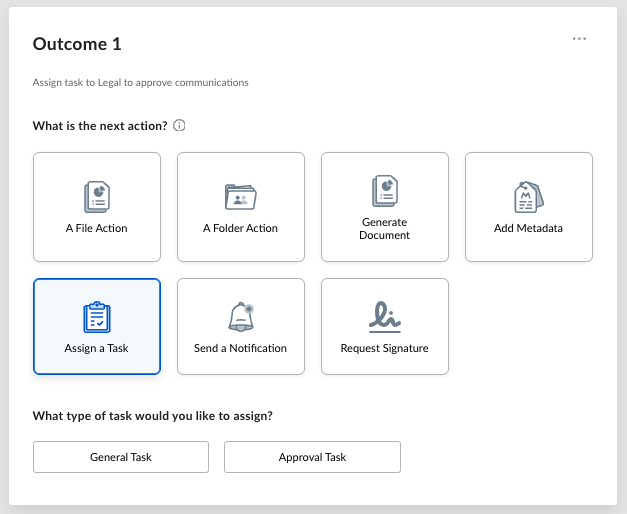
Outcomes are the actions the workflow performs after it starts. A workflow can have one or many outcomes.
Common outcomes include:
- Assigning a task (review, approval, or general)
- Moving or copying files
- Updating file metadata
- Sending notifications
- Requesting an e-signature
Outcomes run in order and can change based on user responses (for example, approval vs. rejection).
Permissions: Who Can Build and Run Workflows
To build or edit a workflow, a user must:
Have Box Relay enabled by an Admin for the enterprise
Have permission to use Relay (not restricted by admin settings)
Have Editor access or higher on the folder used by the workflow trigger
If a user does not meet all three conditions, they will not be able to select folders or save workflows.
Building your first Box Relay workflow
If this is your first time using Box Relay, start with a simple workflow.
Example: File Approval Workflow
This example walks you through creating a simple approval workflow from start to finish. You can follow these steps exactly in Box.
What this workflow does: When a file is uploaded to a specific folder, Box Relay assigns an approval task. If the file is approved, it is automatically moved to an approved folder.
Step 1: Open Box Relay
- Log in to Box.
- In the left navigation, select Relay.
- Click New Workflow.
Step 2: Choose the Trigger
- Select A File Event as the trigger type.
- Select New Upload as the type of file event.
- Click Select Folder and choose the folder where files should be uploaded to start the workflow (for example, “Contracts for Review”).
Tip: You must have Editor access or higher on this folder to use it as a trigger.
Step 3: Add an Approval Task
- Click Add Outcome.
- Select Assign a Task.
- Choose Approval Task.
- In the task details:
- Task name: Review and approve document
- Assignee: Select the reviewer (for example, a manager or legal reviewer)
- Assign the task to the file that triggered the flow
- Due date (optional): Set a due date if needed
- Click Save.
Step 4: Define What Happens After Approval
- Under the approval task, click Add Outcome for the Approved path.
- Select A File Action.
- Select Move as the type of file action.
- Select The file that triggered the flow as the file that should be moved.
- Choose the destination folder (for example, “Approved Contracts”).
Optional: You can also define an outcome for the Rejected path, such as assigning a revision task or leaving the file in the original folder.
Step 5: Review and Activate the Workflow
- Review the workflow steps to confirm everything looks correct.
- Give the workflow a clear name, such as Contract Approval – Basic.
- Click Activate.
Your workflow is now live. The next time a file is uploaded to the trigger folder, the approval process will start automatically.
Best Practices for Box Relay Beginners
Once you’ve built a basic workflow, use these best practices to make it reliable and easy to maintain.
Plan Before You Build
Before creating a workflow, write down:
- What starts the process
- Who needs to take action
- What should happen after each step
Clear planning helps prevent rework later.
Use Clear Names
Name workflows, steps, and folders so anyone can understand them at a glance.
Example:
- Workflow name: “Contract Review – Legal Approval”
- Task name: “Review contract for legal approval”
Keep File Access in Mind
If a workflow moves files between folders, make sure the people involved still have access. Avoid moving files too early if someone may need to rework them.
Start Simple, Then Improve
It’s easier to add steps later than to debug a complex workflow. Build the simplest version first, then enhance it once it’s working.
Level Up your Workflows
After you’re comfortable with the basics, try these advanced features to build more flexible workflows.
Manual Start Workflows
Use manual start triggers when a workflow should run on demand rather than automatically. This works well when assignees or details change each time.
Handle Rejections Thoughtfully
For approval tasks, define what should happen if someone rejects a file. You can route the workflow back to an earlier step instead of stopping it entirely.
Use File Requests and Forms
- File Requests let external users submit files that automatically start workflows. Click here to learn more about File Request.
- Box Forms can collect structured information that drives workflow decisions. Click here to learn more about Box Forms.
Save and Share Templates
If you build a workflow that others can reuse, save it as a template. Templates help standardize processes and reduce duplicate work.
Monitor and Maintain Your Workflows
To keep workflows running smoothly:
- Monitor active workflows regularly
- Review workflow history if something doesn’t behave as expected
- Update or retire workflows that are no longer needed
-
Transfer ownership if the workflow creator leaves your team (learn more)
If you’re new to Box Relay:
- Try building a simple approval workflow
- Explore templates for inspiration
- Gradually add advanced features as needed
Box Relay is designed to grow with you—start small, then automate more as your needs evolve.